Reporting an Issue
While working in a creative application, you might occasionally run into something that doesn’t behave as expected. Whatever the case, you don’t need to interrupt your flow or search for external support. Reporting an issue is built directly into your workspace.
Opening the Feedback Form
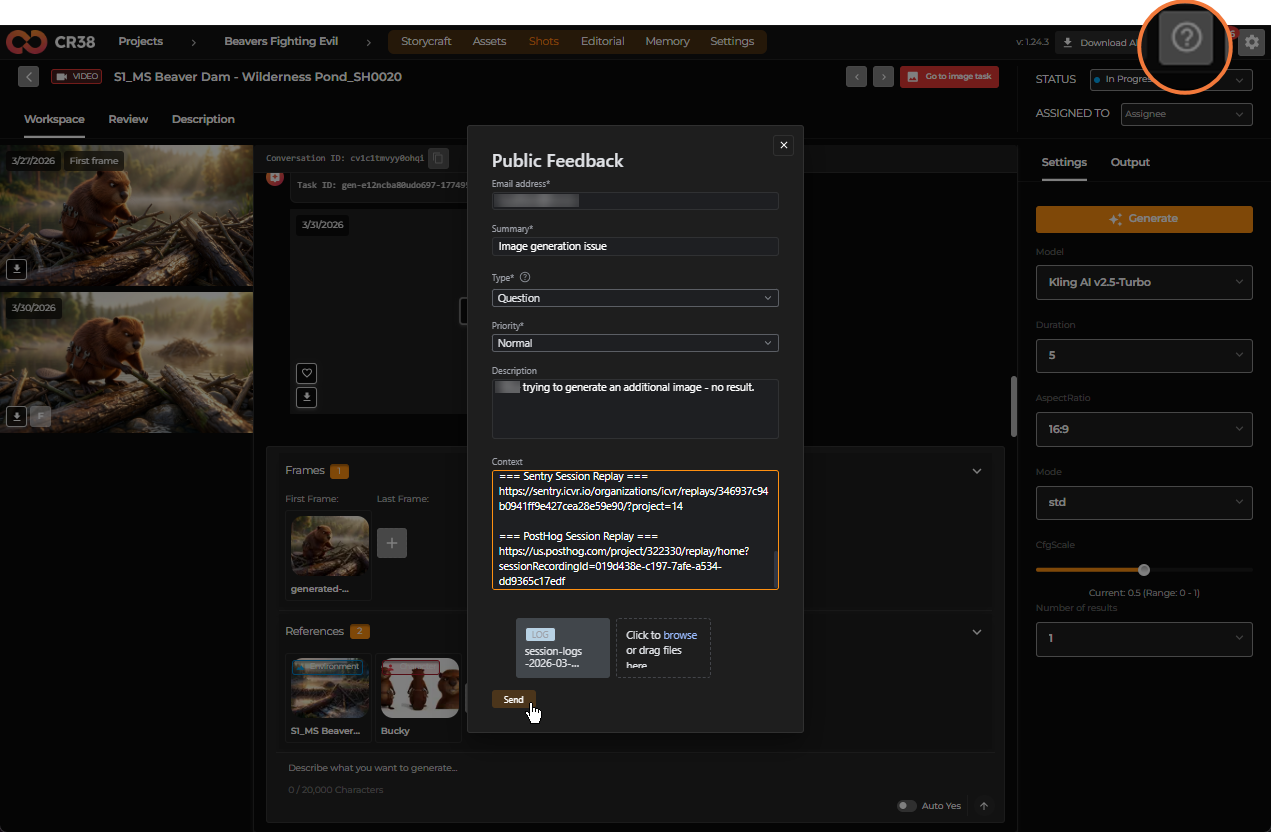
In the top-right corner of the interface, you’ll find Help & Feedback. It’s always there, quietly available when you need it.
Clicking it opens a Public Feedback form right on top of your current screen. You stay exactly where you were, with full context of what just happened.
Describing What Happened
The form is straightforward, but it gives you just enough structure to make your report clear and useful.
You begin with a short summary. It is a few words that capture the issue.
Then you add more detail in the description. This is your space to explain what you were trying to do and what actually happened instead.
There’s no need to be overly precise or technical. A natural explanation is often the most helpful:
“Tried to generate an additional image, but nothing was returned.”
That’s enough to start.
You can also adjust the type and priority if needed, but in most cases, the defaults work just fine.
What Craftology Captures for You
As you fill in the form, something important is already happening in the background.
Craftology is automatically collecting technical context and attaching it to your report. You’ll see this in the Context section already filled out for you.
It includes details like your user session, browser, environment, and the exact location in the app where the issue occurred. You don’t need to add or edit anything here. It’s handled for you, quietly ensuring that nothing important is missing. If you want, you can still attach additional files (screenshots or logs), but often, it’s not necessary.
Sending Your Report
Once you’ve described the issue, all that’s left is to send it.
Click Send, and Craftology immediately confirms that your request has been submitted.
There’s nothing more you need to do in the moment.
What Happens After
Soon after, you’ll receive an email confirming that your request has been received.
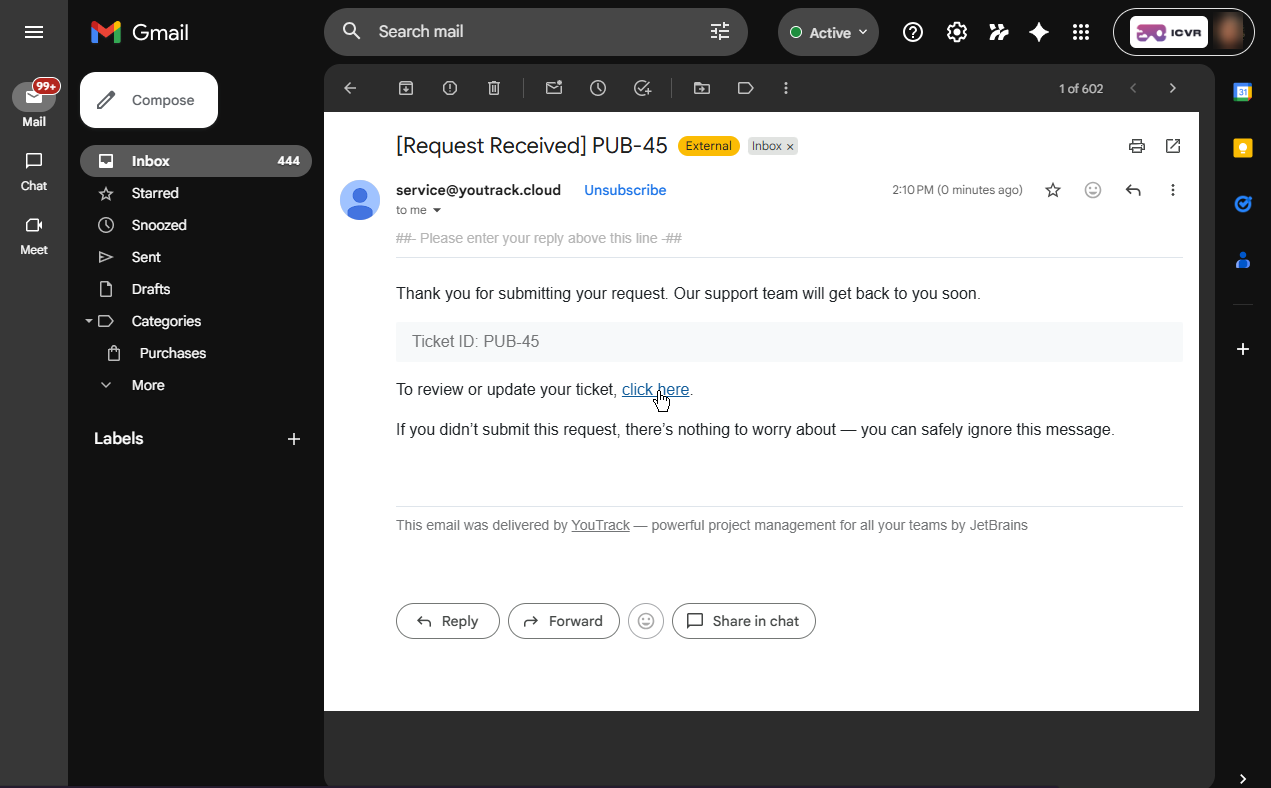
Inside, you’ll find a ticket ID and a link to view your request. Behind the scenes, your report is already enriched with context, logs, and session replay, giving the team everything they need to investigate. If needed, you can return to that link at any time to follow up or add more details.
Seeing the Issue Again (Session Replay)
One of the most powerful parts of your report is something you might not even notice at first.
Alongside the technical details, Craftology includes links to session replays.
These are labeled as:
- Sentry Session Replay
- PostHog Session Replay
They allow the team to replay your exact interaction with the platform, step by step, moment by moment. Instead of guessing what went wrong, they can see it unfold exactly as you experienced it. It’s like handing over a recording of the issue, without needing to press “record.”